

Inspect datasets
Inspect a dataset after its onboarding job completes. Check its status and resource references, then review the distributions and lineage before using it for training.
Before you begin
Identify the completed onboarding job and output dataset. Check that the dataset is AVAILABLE before training. Histogram and lineage inspection help verify the prepared data; anomaly analysis also requires a running deployed model.
Inspect the dataset
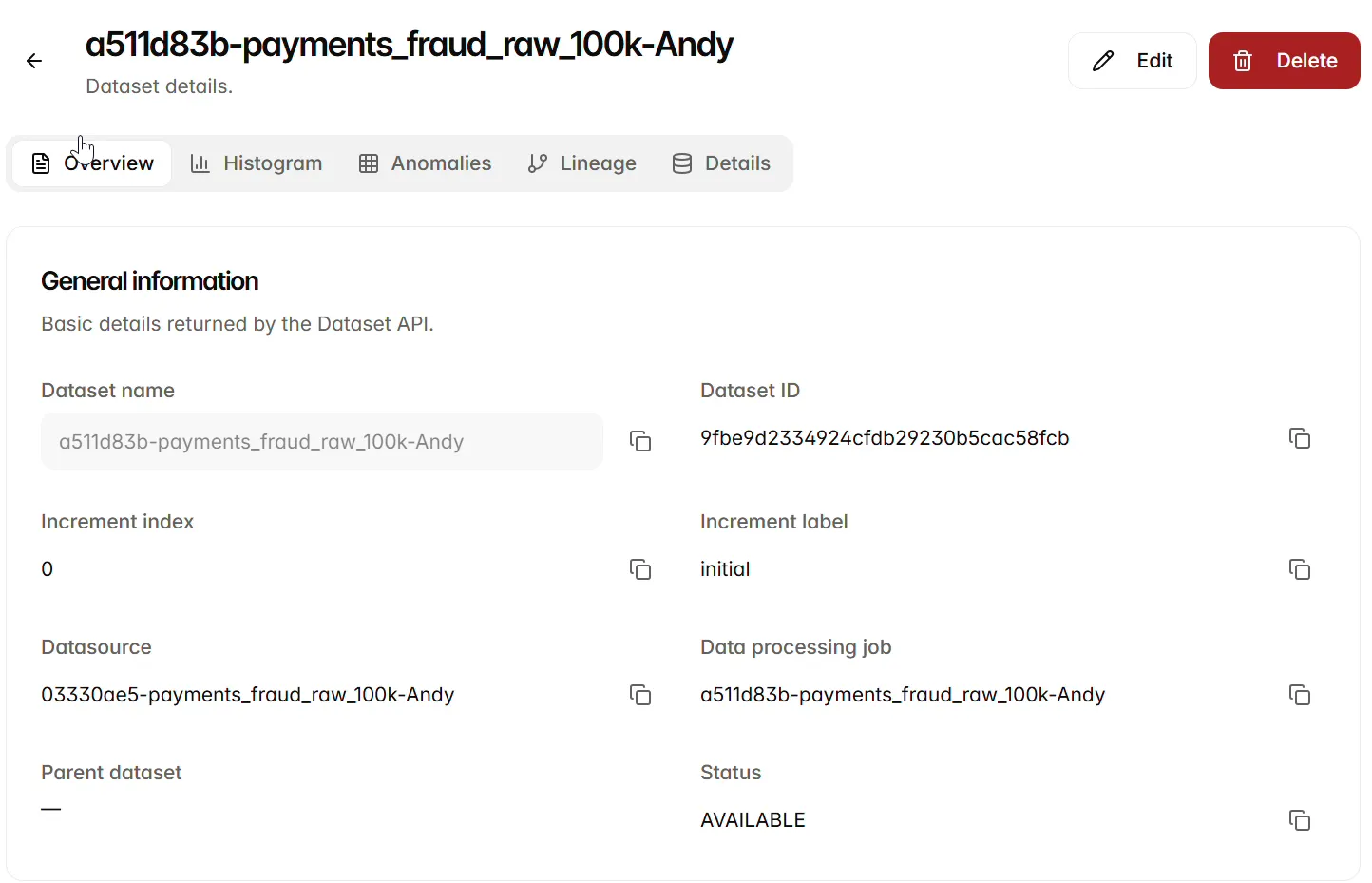
Open the dataset to review its metadata and processing results.
Overview shows the dataset name and ID, increment, source processing job, datasource, parent dataset, status and audit information. Confirm that the references match the intended input and job.
Inspect distributions and anomaly controls
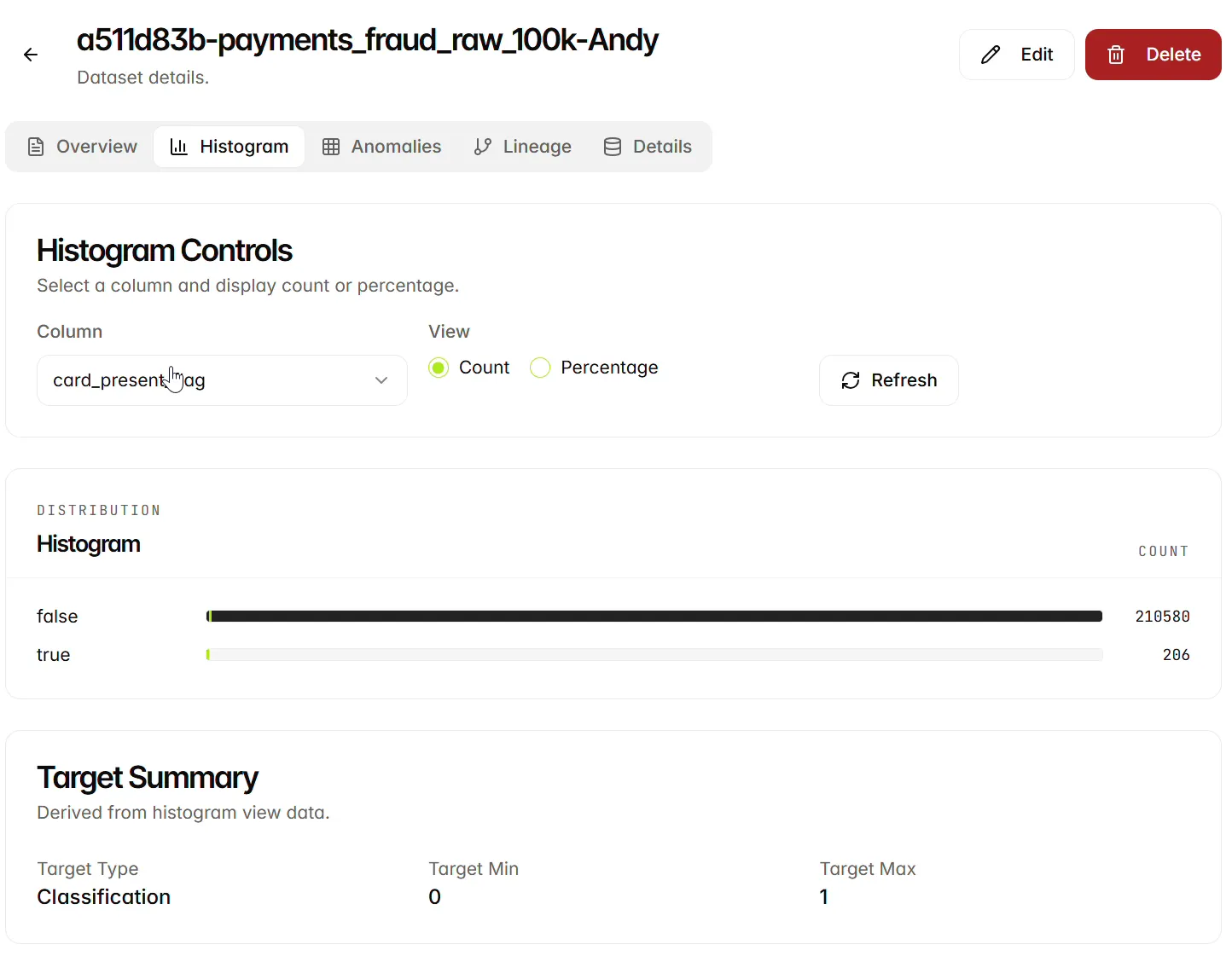
Histogram lets you select a Column and view Count or Percentage. Use Refresh to refresh the display. Inspect the distribution and the target summary before moving to model development.
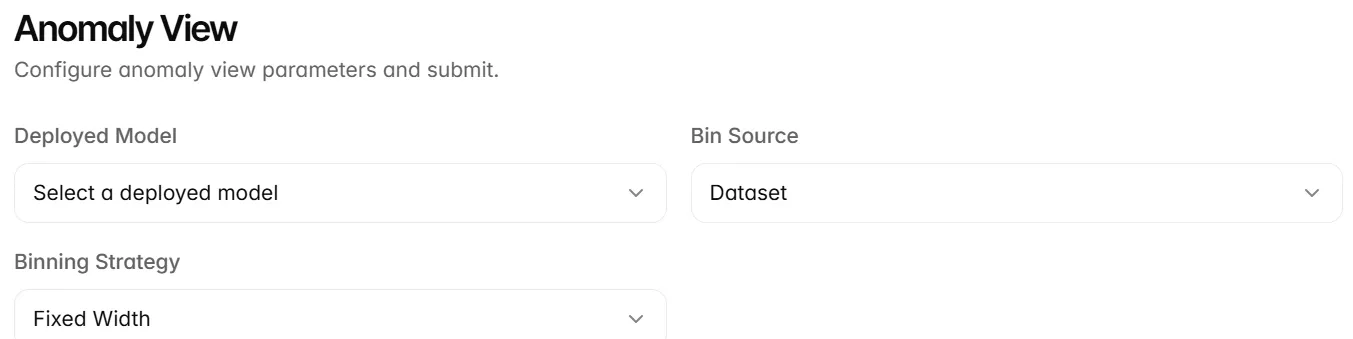
Anomalies provides controls for a deployed model, bin source, binning strategy, features and rebinning. Return to this view after deploying a model. Select the deployed model, review the binning and feature settings, then select Submit. Interpret the results in the context of the selected model and dataset; an unusual observation does not necessarily indicate an incorrect source value.
Trace dataset lineage
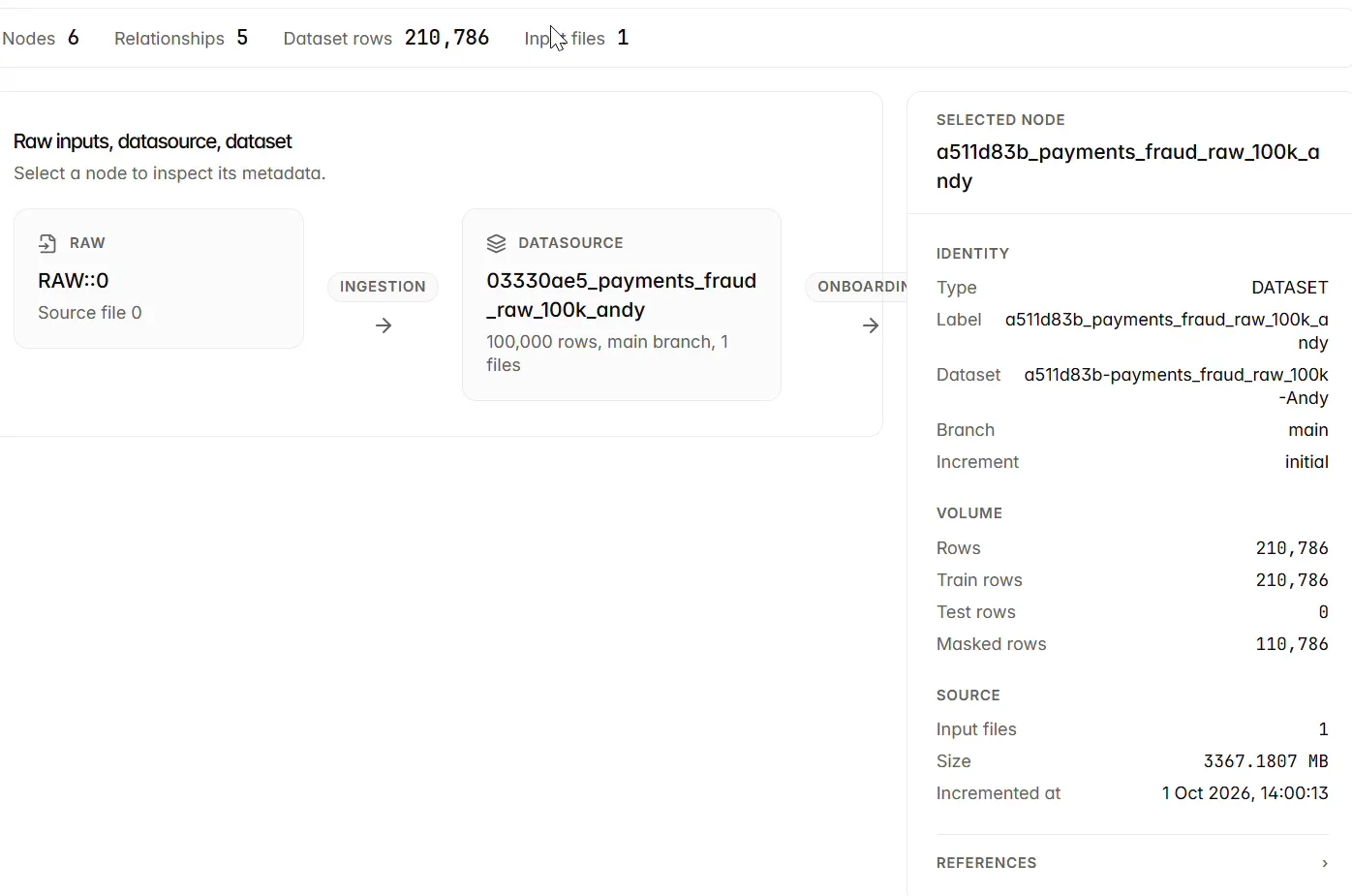
Lineage links raw inputs, the datasource and dataset through their processing steps. Select a node to inspect its metadata. Review the row counts, source information and relationships when checking where the dataset came from.
Inspect the dataset payload
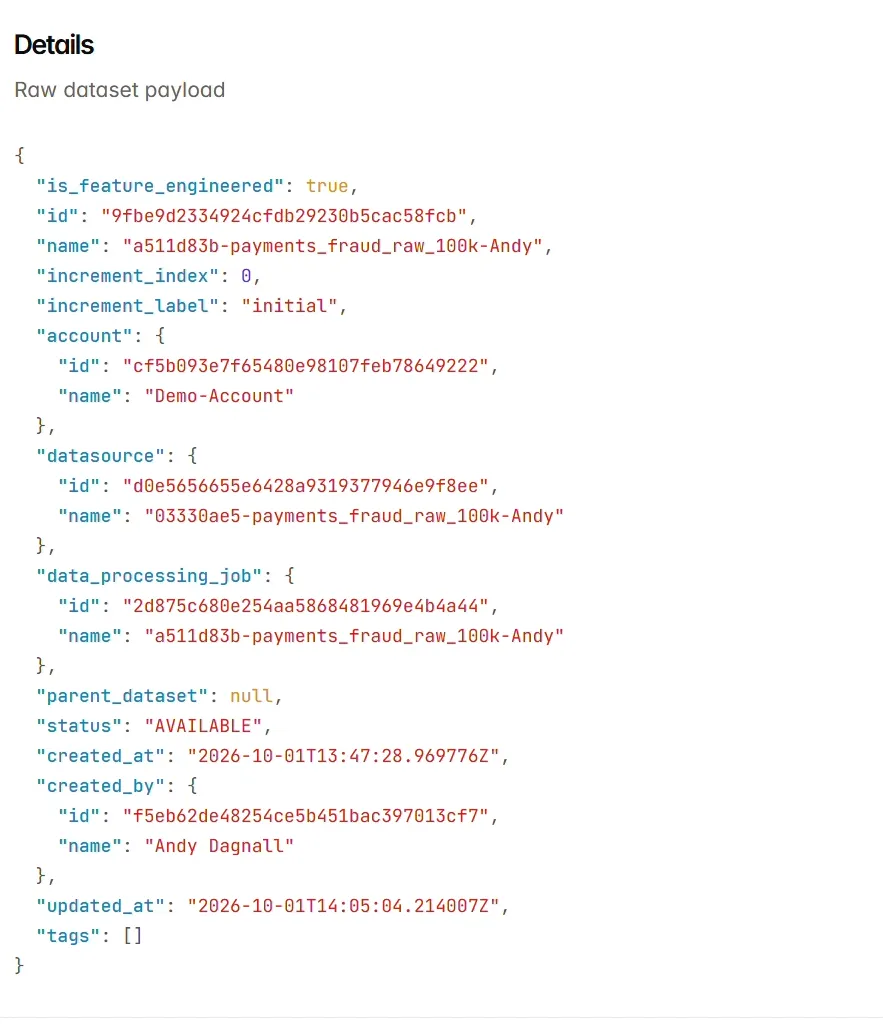
Details displays the raw dataset payload, including identifiers, references, increment information, status and audit fields.
Decide whether the dataset is ready for training
Compare count and percentage views when assessing a distribution. Percentages help compare shapes; counts reveal how much data supports them. If a distribution is unexpected, trace it to the source and preprocessing settings before interpreting it as a model effect.
Next steps
Continue to Workspaces.