

Onboarding configuration
An onboarding configuration defines how a datasource is prepared for training. An onboarding job runs that configuration and produces a dataset. Create the configuration, run the job and check the resulting dataset, then create a workspace to organise model development.
Before choosing onboarding settings, review Prepare data, especially the guidance on missing values, categorical values and targets. Use those preparation choices to guide preprocessing.
Before you begin
Have an AVAILABLE datasource, its data schema and a processing compute configuration ready. Identify the prediction type and target fields for the model before creating the onboarding configuration. Use one target for single-output or multi-class predictions, and more than one target for multi-valued output predictions.
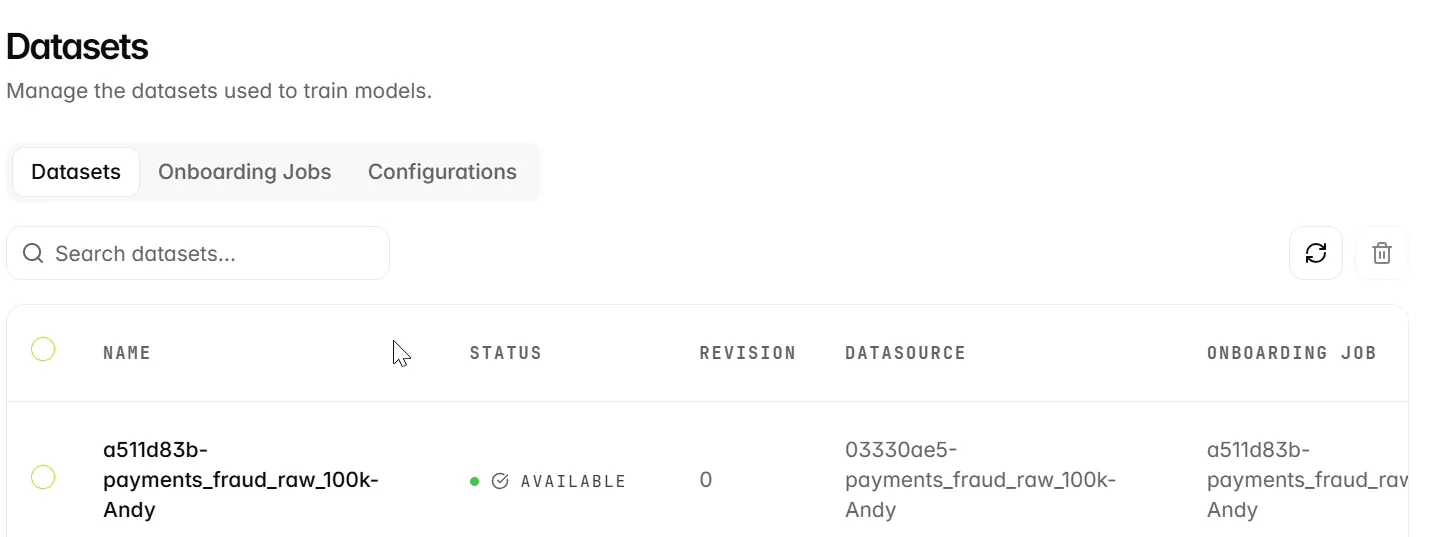
The Datasets area has three tabs: Configurations stores onboarding settings, Onboarding Jobs lists processing runs, and Datasets lists the resulting datasets.
Configure initial dataset onboarding
-
Open Data Lab > Datasets > Configurations, then select Create.
-
Enter a Configuration name and select Initial for the first onboarding of a dataset.
-
Choose the Prediction type for your task. Use Classification for a class or category, or Regression for a numeric value. The example uses Classification.
-
Select the Data schema, then select the model’s target field or fields in Targets to match the intended outputs. The payments fraud example uses fraud_flag.
-
Review the encoding, sharding, masking and additional settings before selecting Create.
-
Return to Configurations and verify that the saved configuration is present before creating a job.
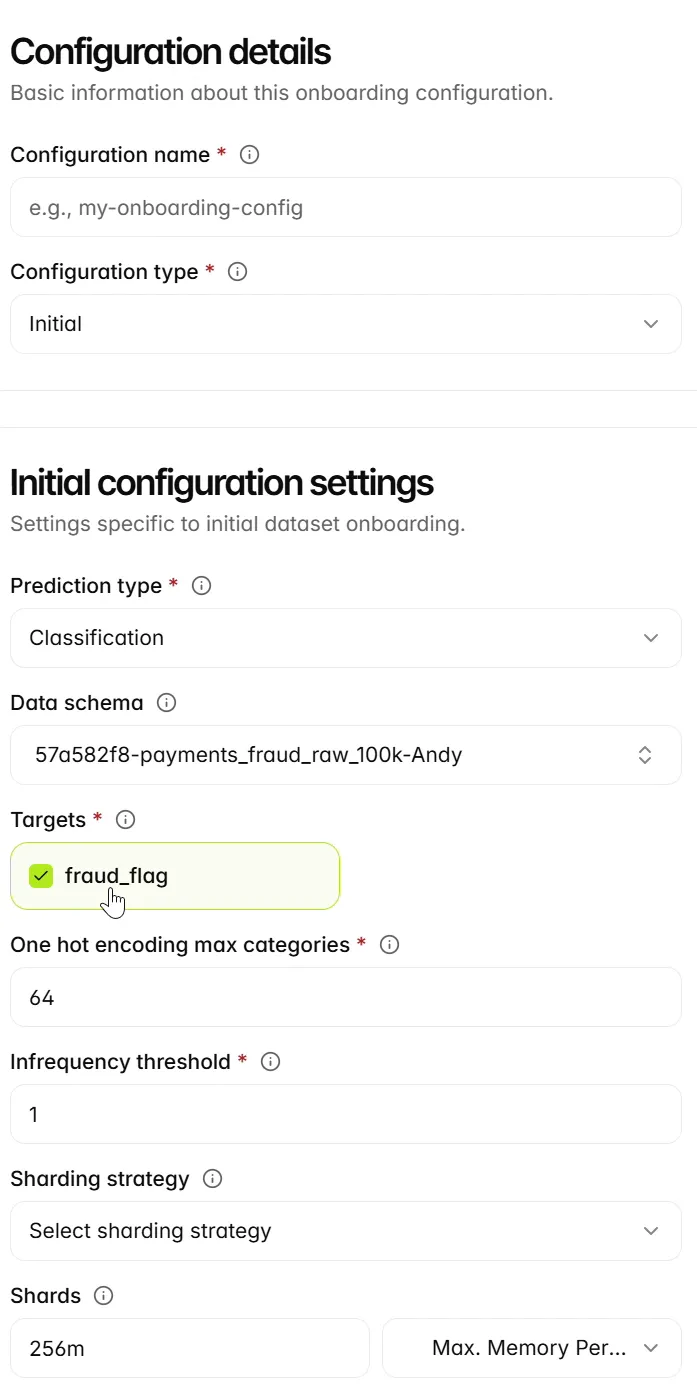
The example shows One hot encoding max categories as 64 and Infrequency threshold as 1. These control categorical encoding and the treatment of infrequent categories. The Shards control shows 256m, a memory limit per shard. Use its mode selector to choose a memory limit or a shard count, and review Sharding strategy for your prediction task.
Review processing settings
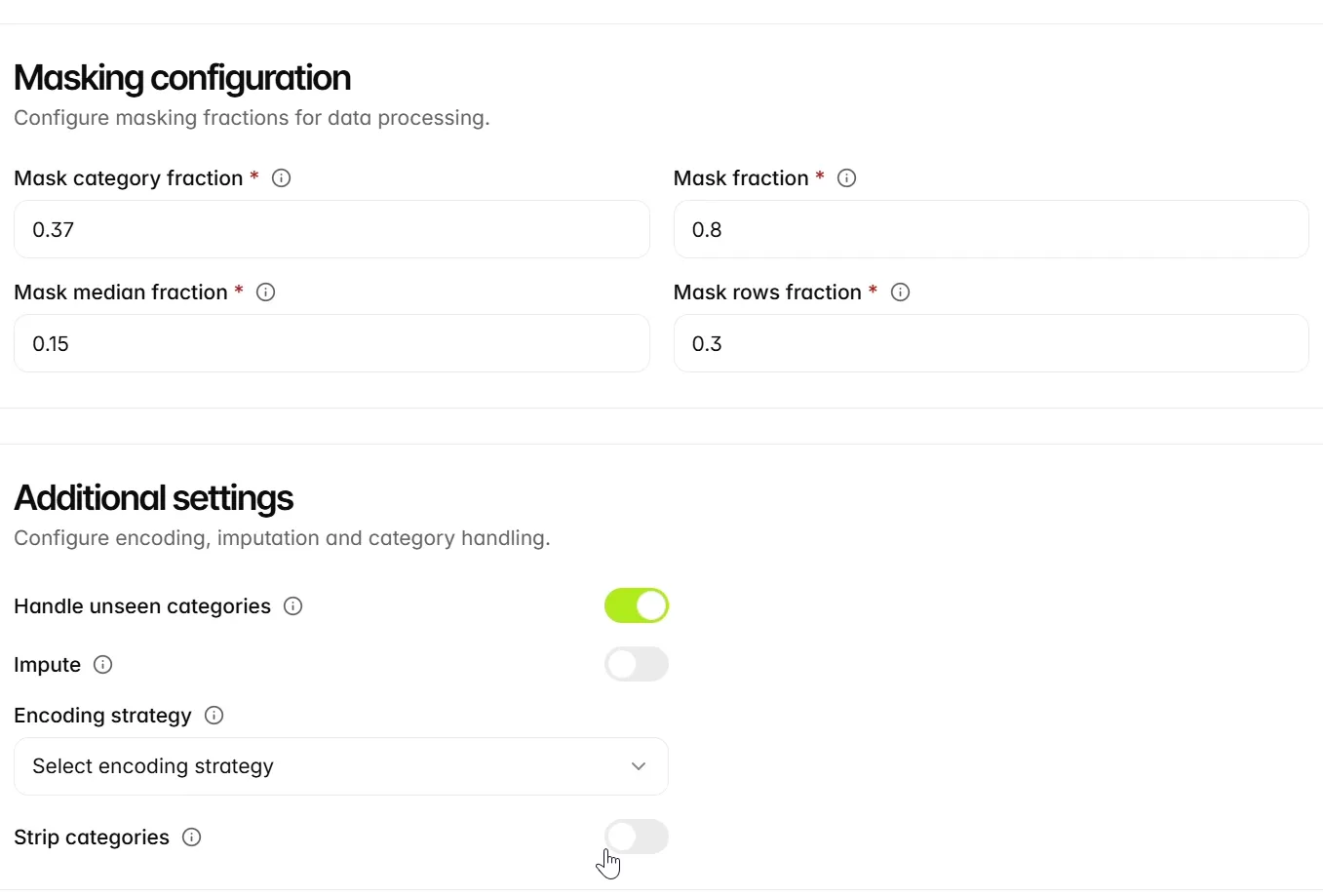
Review the masking fractions and additional preprocessing controls below. Keep the defaults unless your data requires a specific change. Decide how to handle unseen categories, missing values and categorical whitespace before saving the configuration.
Choose categorical and missing-value handling
For encoding examples and the relationship between schema settings and onboarding, see Encoding.
Choose sharding
Sharding divides the data for processing and training. Shards has two modes: Max. Memory Per Shard takes a memory value such as 256m or 1g; Shards takes a positive count. Switching mode resets the value, so check it again before creating the configuration.
Choose a disproportionate strategy deliberately and evaluate against a population that represents your intended use. Changing the balance used in training does not change the population against which performance should be assessed.
Understand masking settings
Masking settings determine how observations and categorical values are sampled for masking during preprocessing. Their values are fractions, not percentages entered as whole numbers.
Start with the form’s values unless the preprocessing task calls for a deliberate change. Review the resulting dataset’s distribution and special categories before training.
Create an incremental configuration
Choose Incremental Update when preparing settings for an existing dataset. The form retains masking, missing-value and additional preprocessing controls while the dataset’s existing context supplies the prediction task. Initial-only settings, including the target, prediction type and sharding setup, are not entered again.
Save this configuration separately and select it in an incremental onboarding job. Use Initial when you need a new dataset with a different prediction task.
Review and reuse a configuration
Open the saved configuration and verify its type and preprocessing choices. For an initial configuration, check the target and prediction type. Select a configuration matching the job type when running onboarding; saving it alone does not process a datasource.
Next steps
Continue to Onboarding jobs.