

Ingestion jobs
An ingestion job imports files from source storage and creates a datasource. Prepare a storage connector, schema, ingestion configuration and processing compute configuration before creating the job.
Before you begin
Confirm that the connector can read the source files and that the ingestion configuration references the correct schema. Prepare a processing compute configuration. Decide whether this run creates a new datasource or adds an increment to an existing one.
Create an initial ingestion job
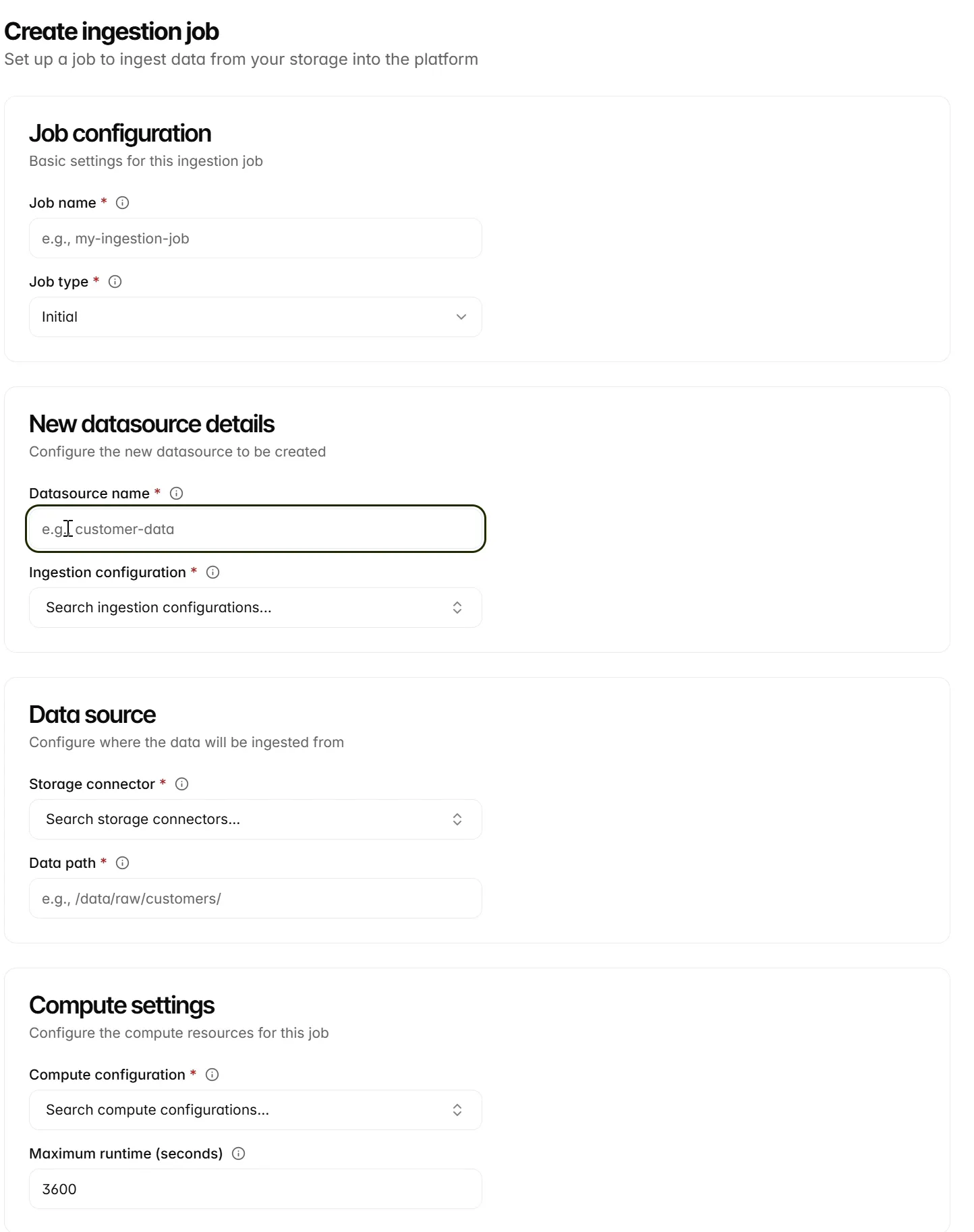
An initial ingestion job creates a new datasource. Open Datasources > Ingestion Jobs, then select Create. Select the configuration and source location for the data you want to import, using the fields below.
-
Enter the job name and output datasource name, and select Initial for the job type.
-
Select the ingestion configuration and storage connector, then enter the bucket-relative data path. Check that these refer to the intended schema and source files.
-
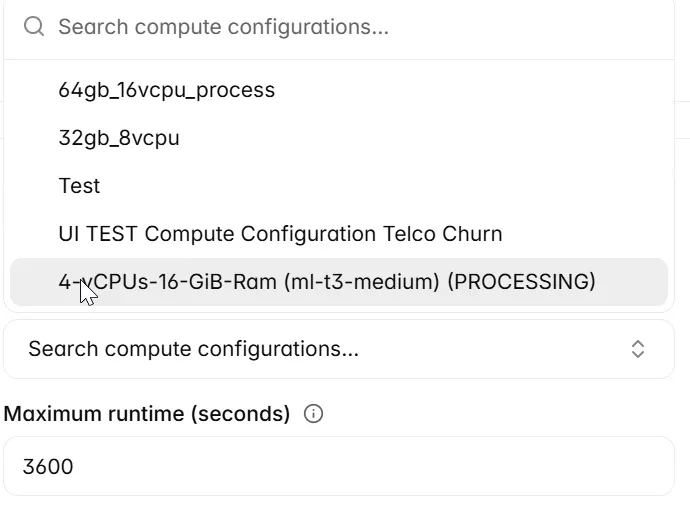
Select a processing Compute configuration and set Maximum runtime (seconds). Enter 3600 to allow 60 minutes.
-
Select Create to submit the job for asynchronous processing.
Review the selected inputs
Complete the required inputs before creating the job.
Monitor the job and check the datasource
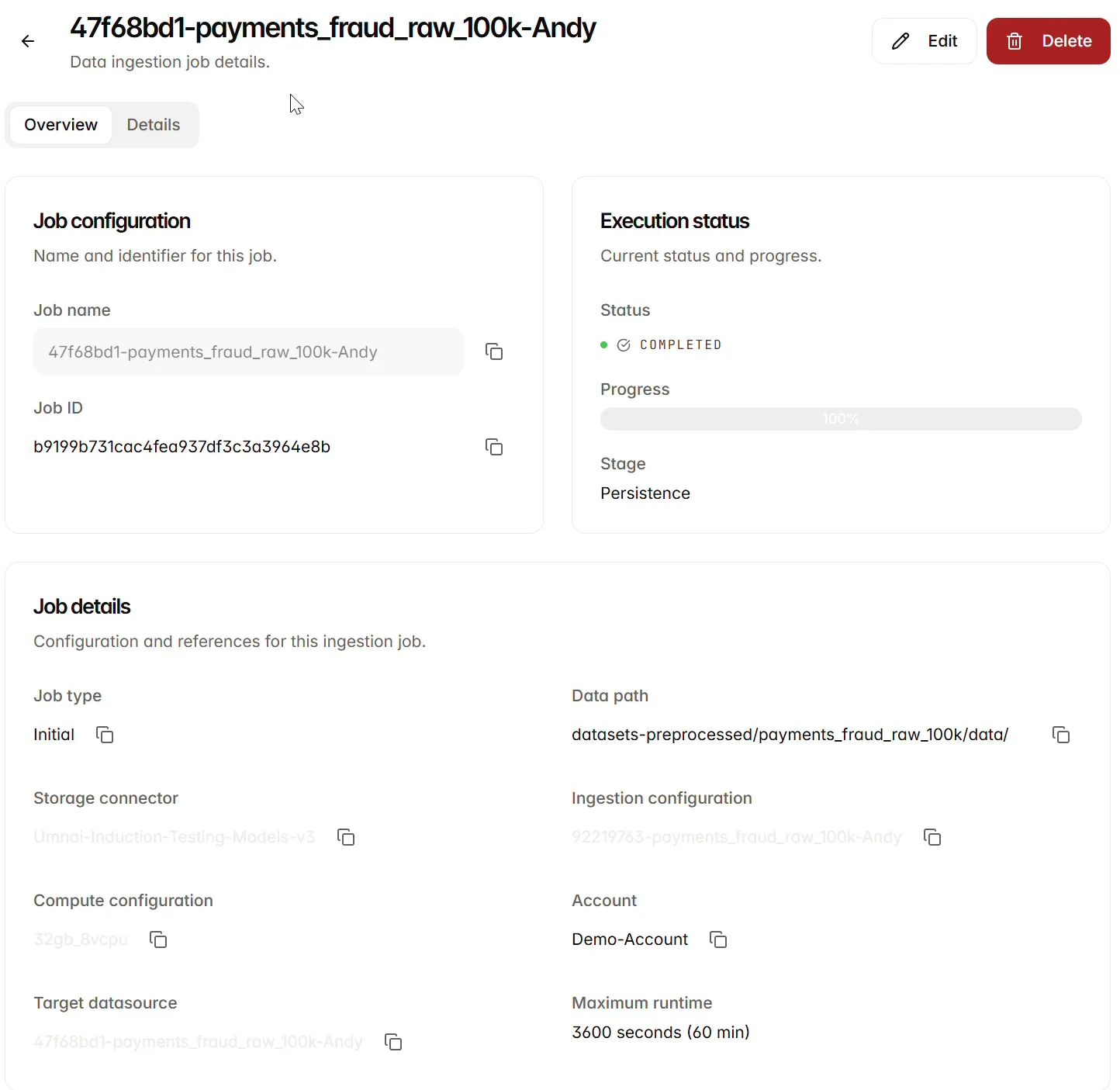
Ingestion jobs run asynchronously. Open the job’s Overview and inspect Status, Progress and Stage under Execution status. The example below shows COMPLETED, 100% and Persistence. Use Job details to verify the source path, ingestion configuration, compute configuration, target datasource and maximum runtime. If the job fails, inspect its error details before submitting another run.
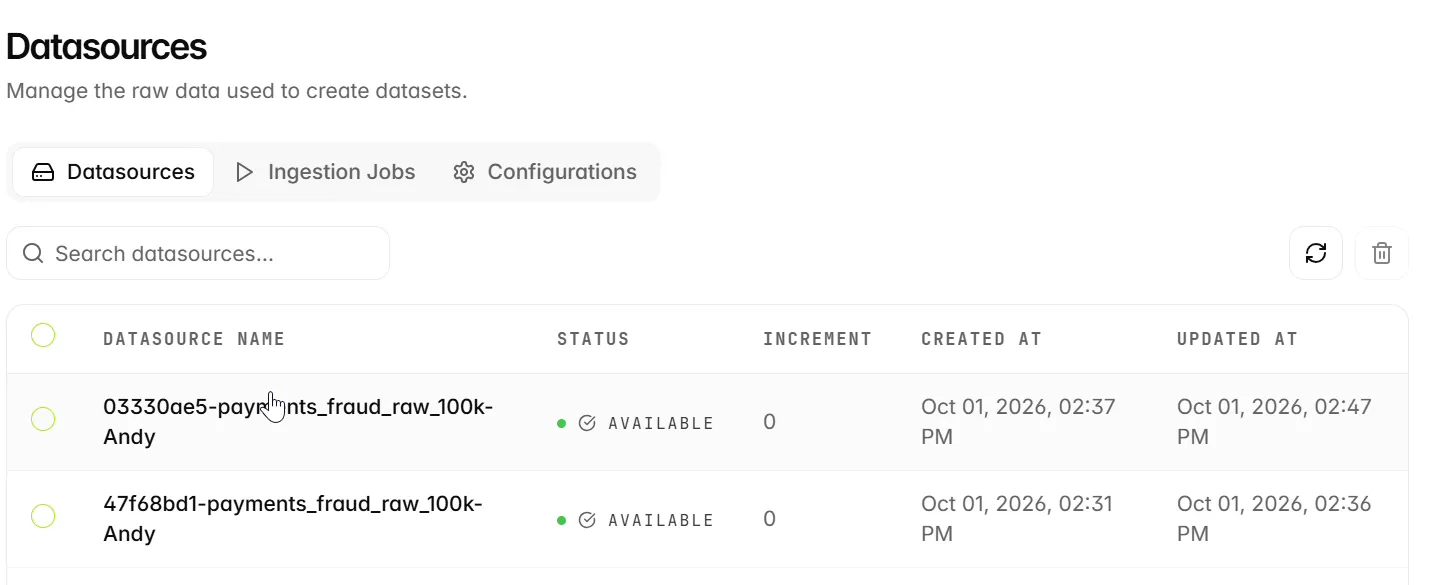
Return to the Datasources tab and locate the output by its datasource name. Check that its status is AVAILABLE before using it to create a dataset. The list also displays Increment, Created at, and Updated at.
Add an increment to a datasource
- Open Ingestion Jobs > Create and enter a job name.
- Set Job type to Increment and select the existing datasource. Use the existing datasource’s schema when preparing the additional files.
- Supply an Increment label if you need a descriptive label for this update.
- Select the storage connector, enter the path to the additional data and choose the processing compute configuration.
- Set the runtime in seconds, review the existing datasource selection and select Create.
- Monitor the new job, then inspect the datasource and its increment information after completion.
Changing job type clears selections specific to the previous type. Review the form again after switching between Initial and Increment. An increment targets an existing datasource; it does not create a separately named initial datasource.
Next steps
Review the datasource, then prepare its onboarding configuration.