

Storage connectors
A storage connector points to the Amazon S3 bucket that contains your source data. Create the connector before retrieving a schema or running an ingestion job.
Before you begin
-
Know the name of the S3 bucket containing your data.
-
Have access to update that bucket’s permissions, or arrange for its AWS administrator to complete the permission steps.
Create an S3 storage connector
-
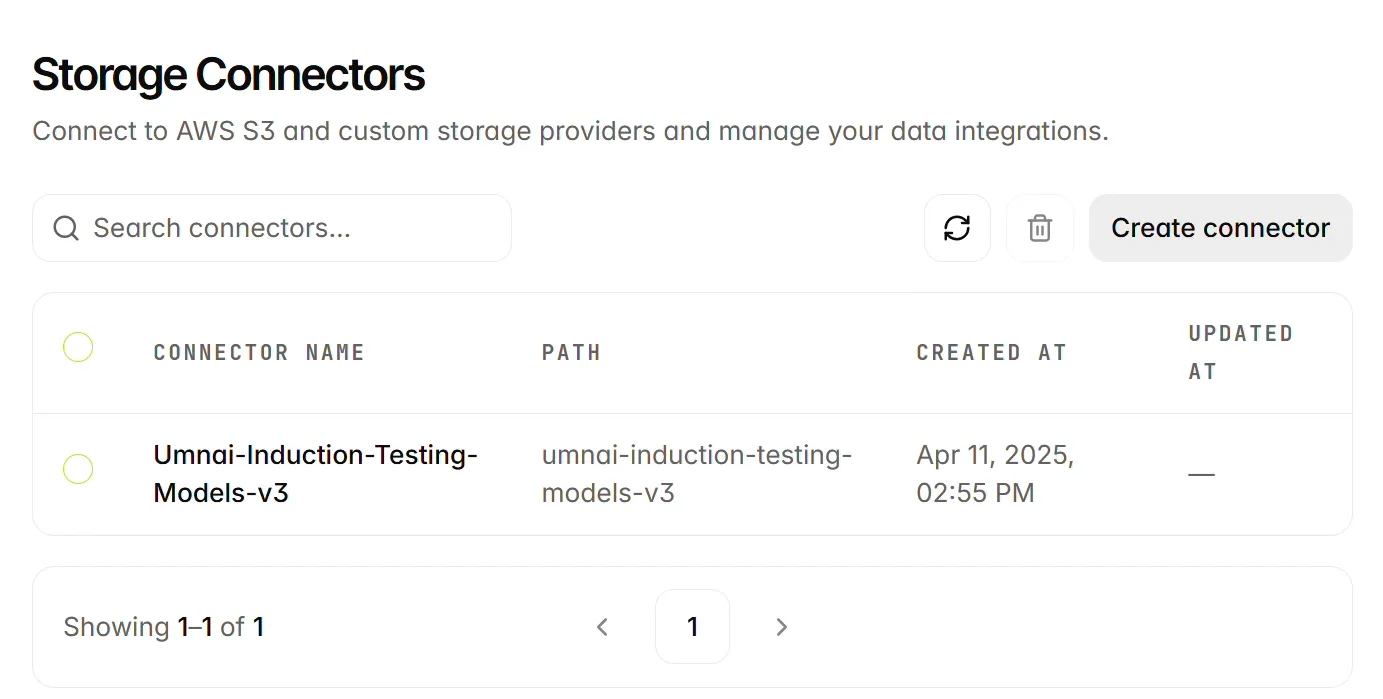
Select Data Lab > Storage Connectors in the left navigation.
-
Select Create connector to open the Create storage connector form.
-
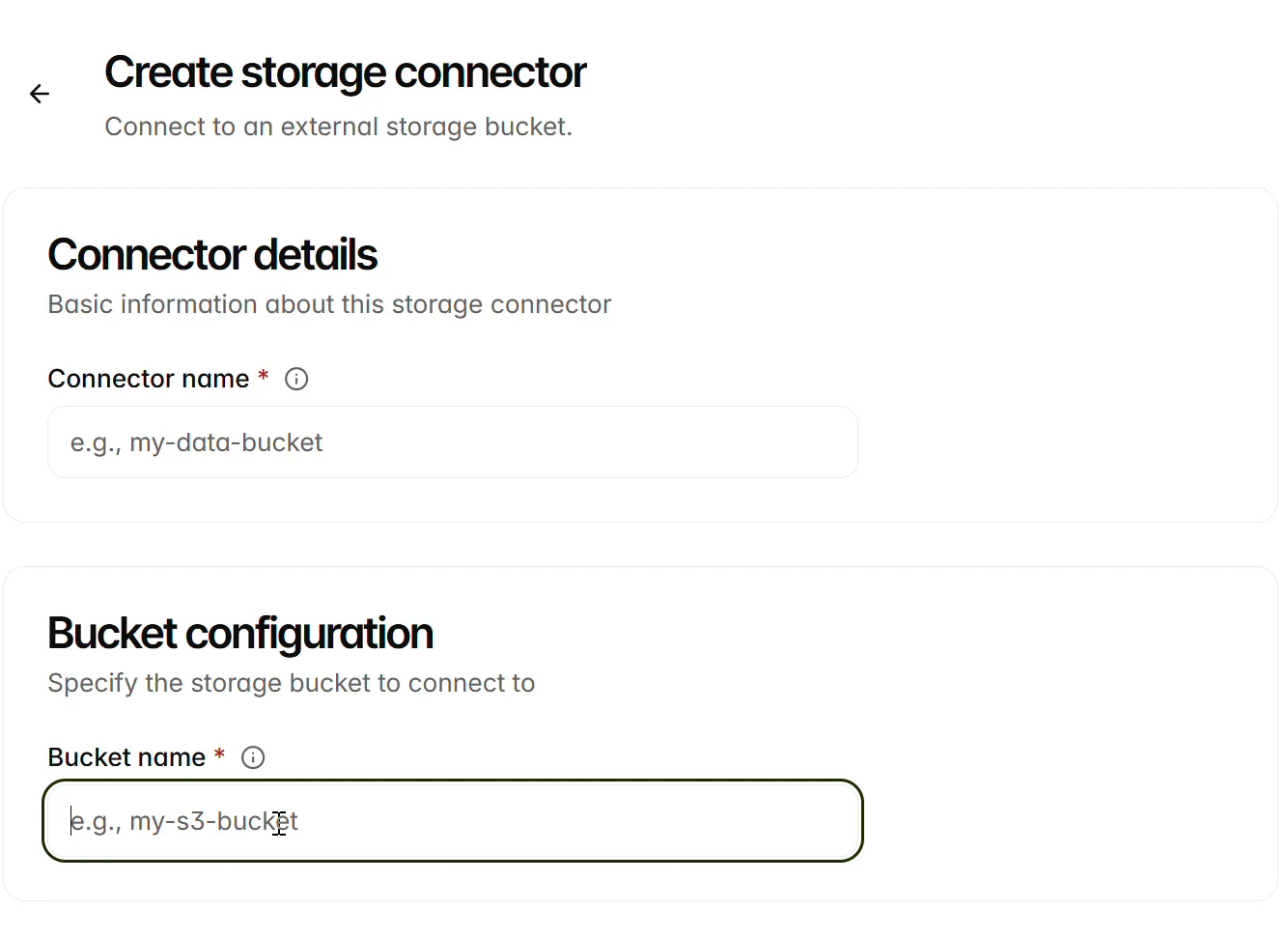
Complete the two required fields.
Grant access and submit
-
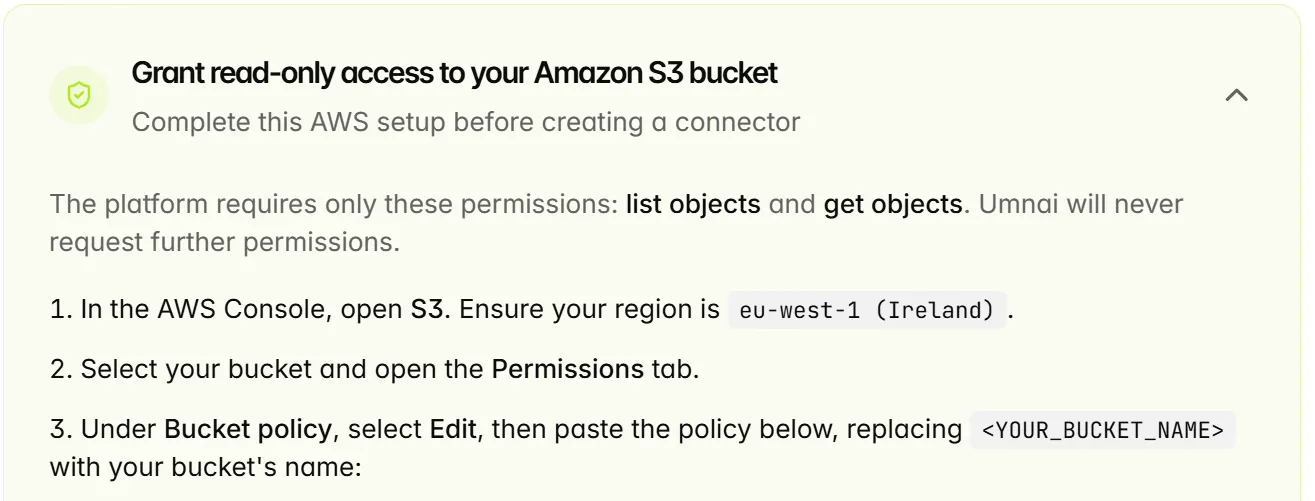
Expand Grant read-only access to your Amazon S3 bucket and follow the setup instructions for your environment. The policy grants access to list and retrieve objects. Check the required AWS region before continuing; the example below uses eu-west-1 (Ireland).
-
In the AWS Console, open S3, select the bucket, and open Permissions. Under Bucket policy, select Edit.
-
Copy the policy supplied by the platform. Replace each <YOUR_BUCKET_NAME> placeholder with your bucket’s name and apply the policy. Keep the AWS principal supplied for your environment.
-
Select Save changes in AWS and check the confirmation that the policy was updated.
-
Return to the platform and select the checkbox confirming that you have granted read-only access by applying the bucket policy.
-
Select Create connector to submit the form.

Review a connector
Open Storage Connectors, locate the connector, and select its name. You can use Search connectors… to locate an entry. The list displays Connector name, Path, Created at, and Updated at.
On the connector page, use Overview to check the connector name, connector ID, and bucket name. The Audit trail section shows creation and update information. Copy icons are available beside the connector name, connector ID, and bucket name.
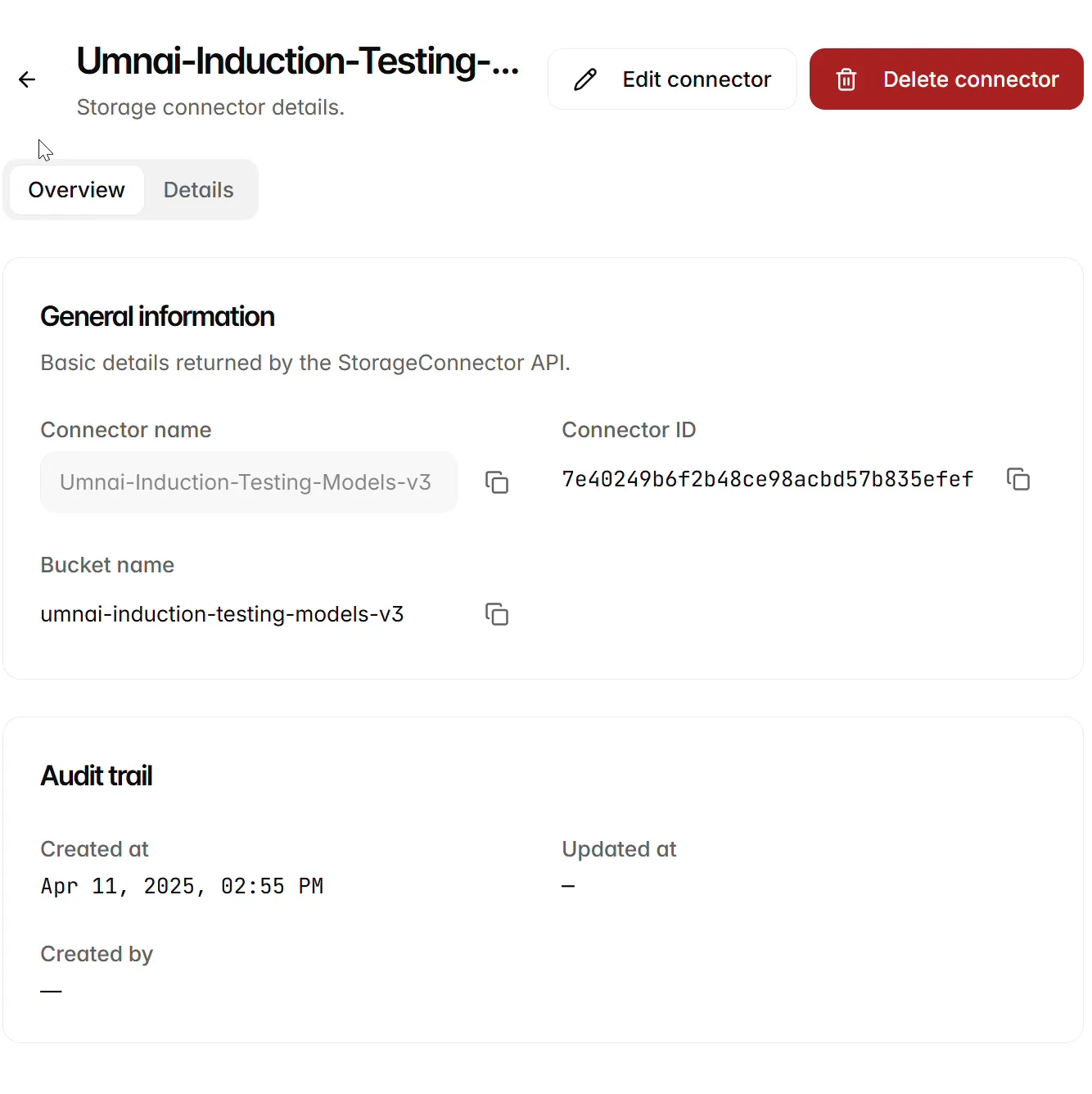
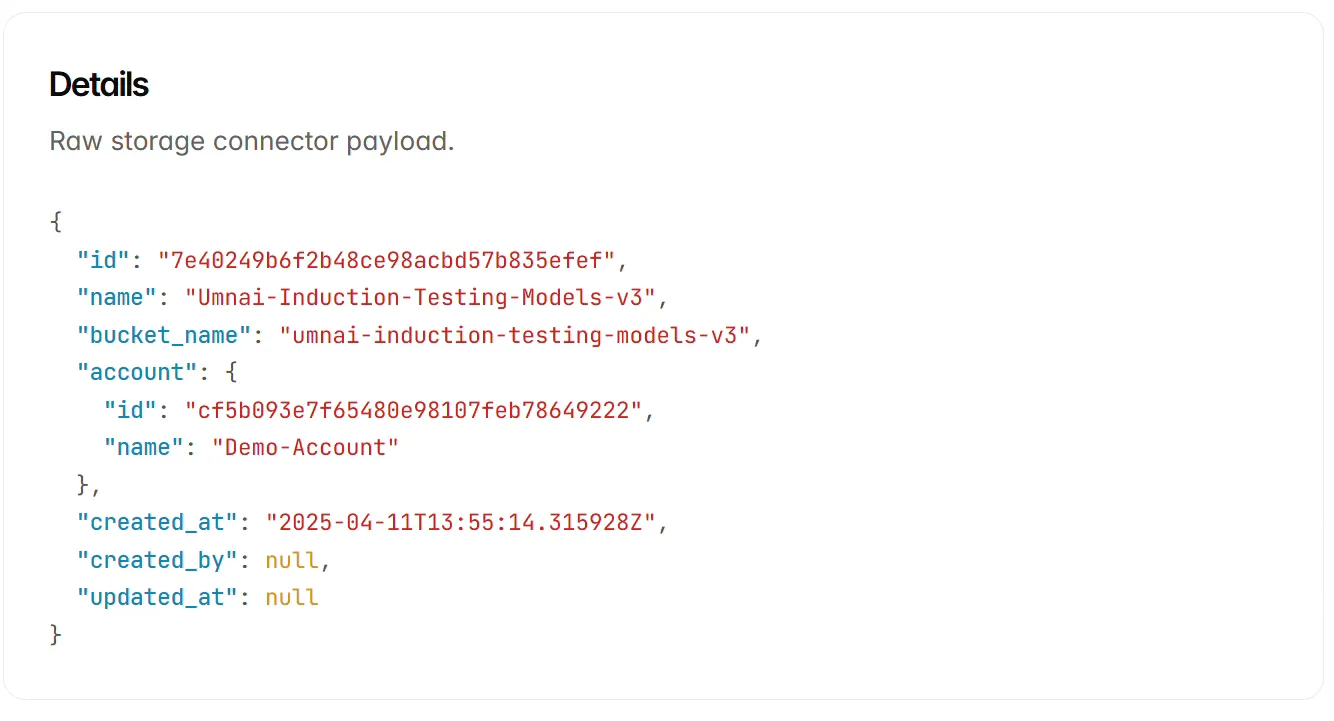
Select Details to view the raw connector record, including its identifiers, bucket name, account information, and timestamps. Use the back arrow to return to the list.
Rename a connector
Open the connector, select Edit, update Connector name and save. The bucket is read-only on the edit form. Create a separate connector when you need to use another bucket, then select that connector for subsequent schema retrieval or ingestion.
Next steps
Create a processing compute configuration for data jobs, then continue to Data schemas.