

Sign in and explore the dashboard
Sign in to the platform, review the dashboard and configure a storage connector for an Amazon S3 bucket. The connector stores the external bucket reference used to retrieve source data during schema creation and ingestion.
Before you begin
- Have your platform email address and password ready.
Sign in
-
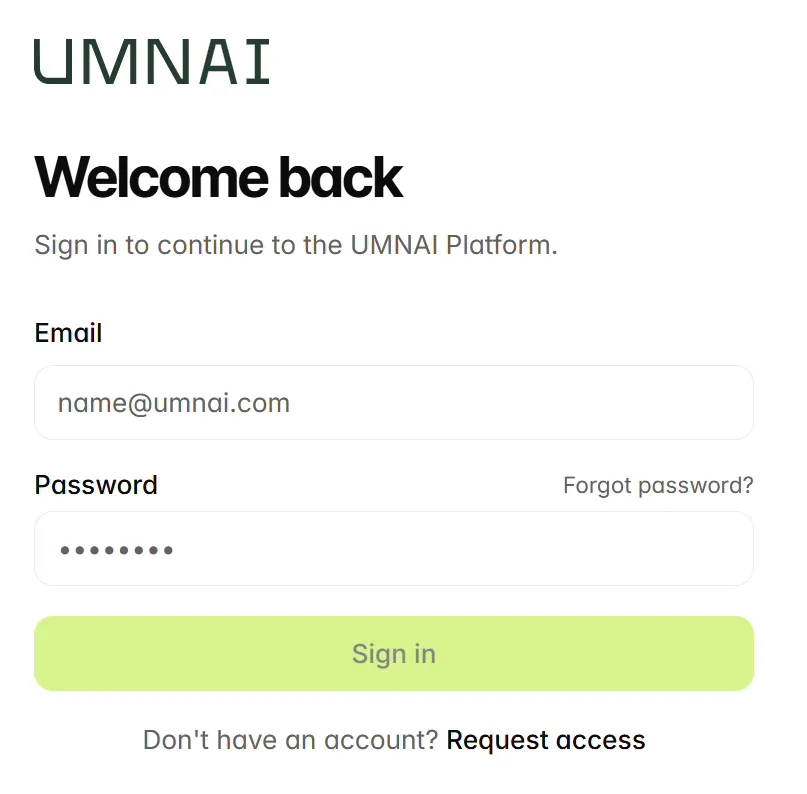
Open the platform sign-in page provided for your environment.
-
Enter your email address in Email.
-
Enter your password in Password.
-
Select Sign in. After authentication, the dashboard opens.
The sign-in page also provides Forgot password? and Request access links.
Read the dashboard
The dashboard presents summary cards and a Select Active Model area. The values shown depend on the data and models available in your environment.
The Select Active Model area lists model entries with status labels such as RUNNING and FAILED.
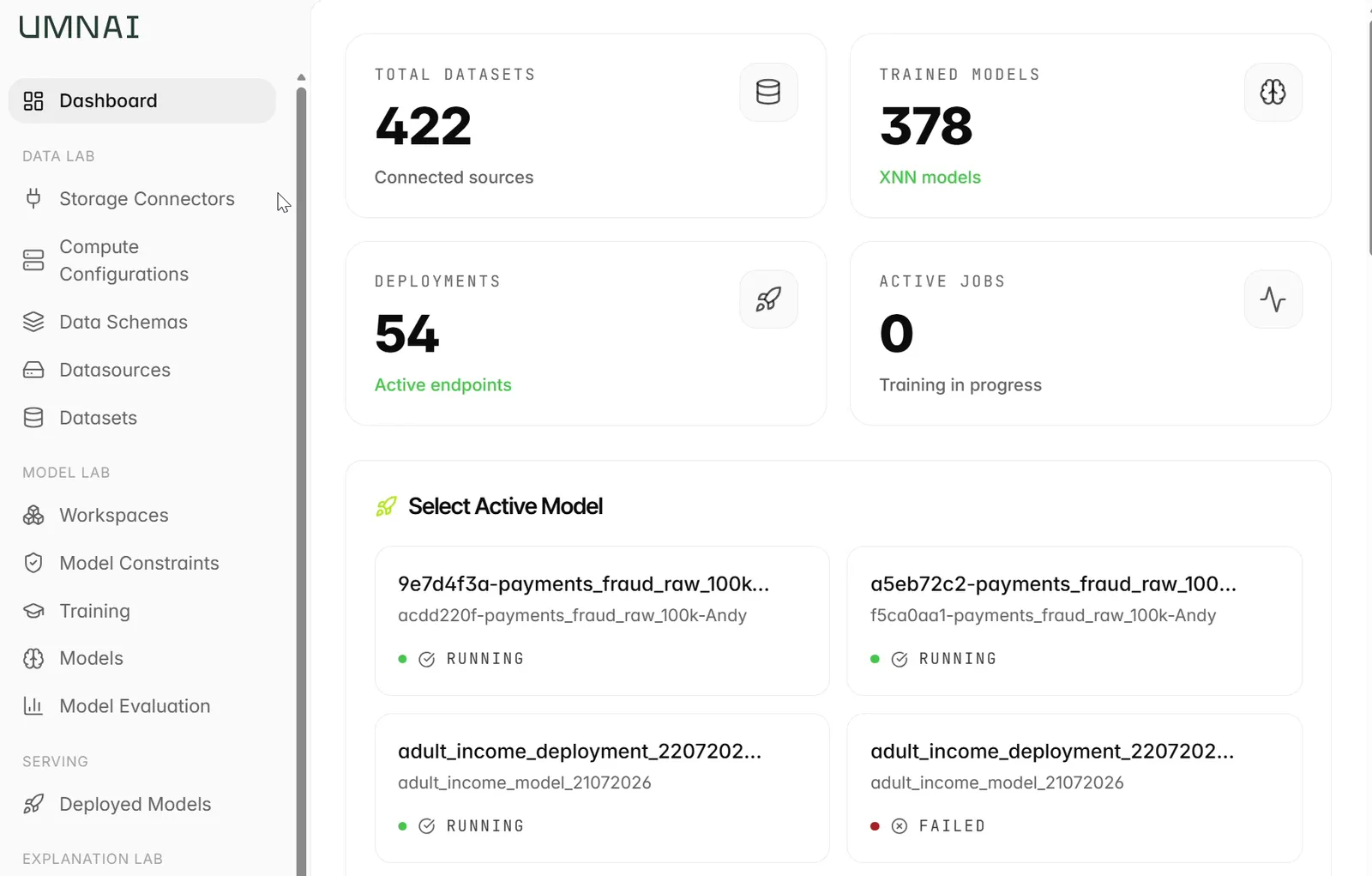
Use the left navigation to move between Data Lab for storage and data, Model Lab for model configuration and training, Serving for deployed models, and Explanation Lab for explanations. To configure storage, select Storage Connectors under Data Lab.
Next steps
Continue to Storage connectors.