

Training configuration
A training job uses a dataset, workspace, training configuration and training compute configuration to produce a model. Prepare these settings before running training, then inspect the model, configure deployment and evaluate the deployed model. Start with an available dataset and a workspace. Complete the deployment steps before evaluating a newly trained model.
Use the example forms and resource records to locate the settings for your own run. Check names, dataset references, machine sizes and runtime limits before submitting a job. The training, evaluation and deployment examples use different resources; confirm the selected model at each stage.
Before you begin
Decide which prediction task and dataset the configuration will support. Most projects can start with the prefilled induction settings. Change them when you need to control sampling, model structure, training duration, regularisation or resource use.
Prepare a separate training compute configuration for the machine. Saving either configuration does not start training.
Create a training configuration
-
Open Training configurations and select Create.
-
Enter a Configuration name.
-
Review the settings throughout the form. Keep the defaults unless your modelling task requires a specific change.
-
Select Create to save the configuration. Open the saved record to check its settings before using it in a job.
The form groups settings into Learning & optimization, Regularization, Tree & boosting, Binning, Interactions & complexity, Sampling & data, Partitioning & pruning, and Model capabilities. These groups control optimisation, model structure and data handling. The controls below follow the same groups as the form. The starting values are the values prefilled by the UI; inspect a saved configuration for the values used by a particular job.
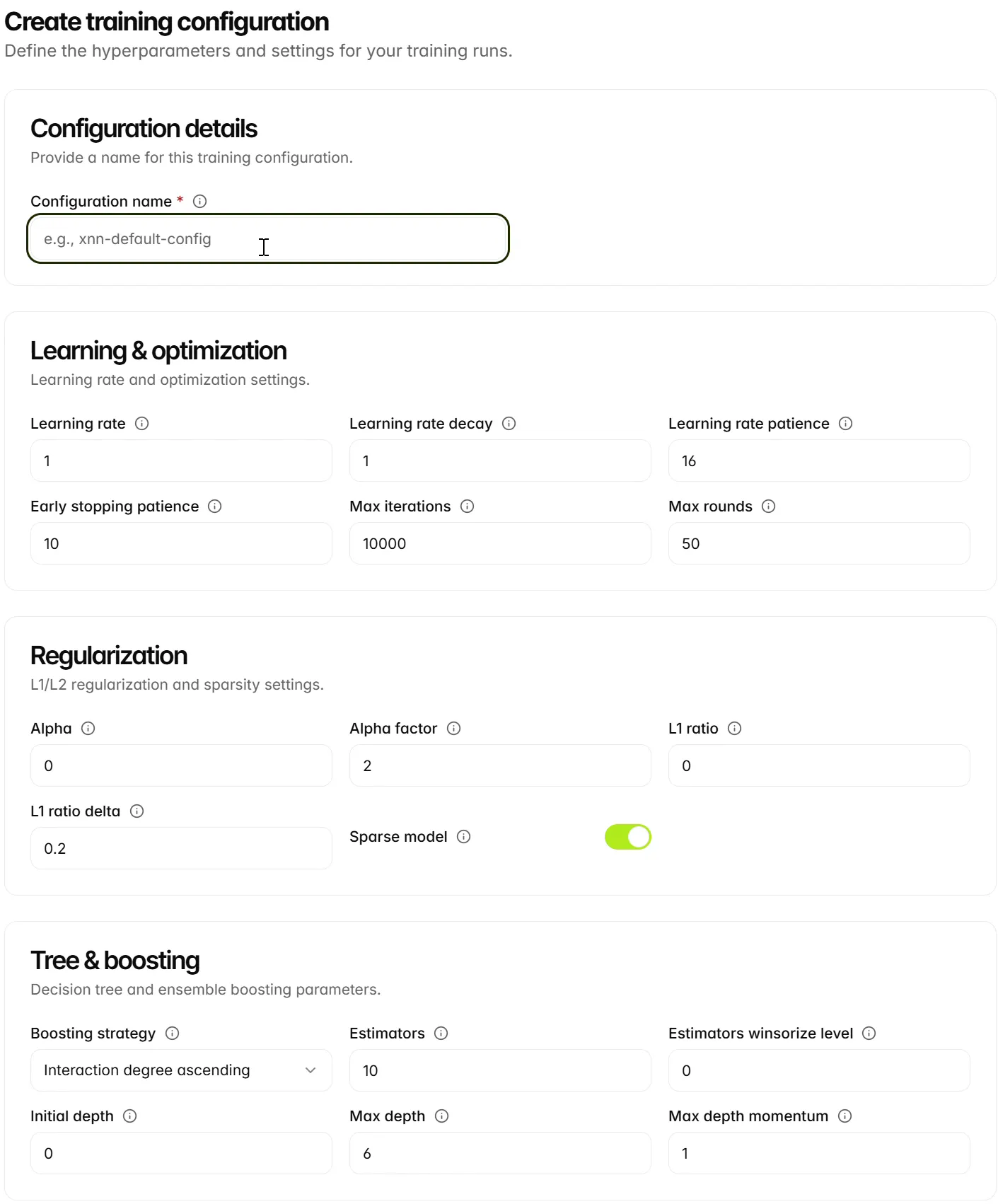
Review the configuration
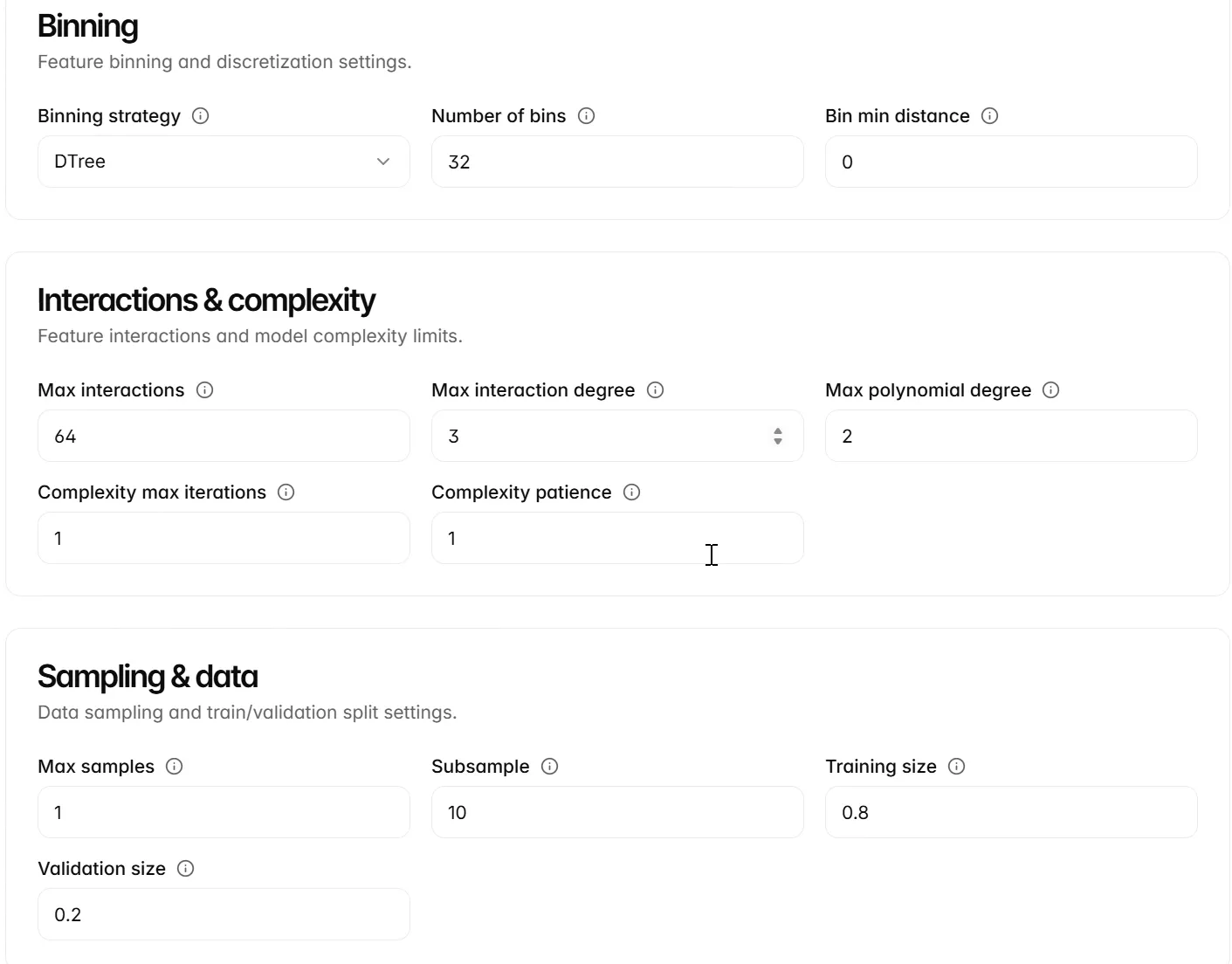
Scroll through the configuration before saving. The example uses DTree binning with 32 bins, 64 maximum interactions, interaction degree 3, polynomial degree 2, and training and validation sizes of 0.8 and 0.2. Check these choices for your own run. The training-validation split does not replace a separate test population for evaluation.
Learning and optimisation
Learning-rate settings control how quickly training updates the model and what happens when progress stalls. Iteration and round limits bound the training loop; a job’s maximum runtime provides a separate time limit.
If a run stops before learning useful structure, review the stopping settings and the job status together. Increasing limits can increase runtime; it does not guarantee a better model.
Regularisation
Regularisation controls how strongly the model penalises coefficients. Use it when investigating overfitting or unnecessary model complexity, and compare the resulting model on the same evaluation population.
Tree and boosting
These controls govern partitions, estimators and the order in which modules are boosted.
Binning
Binning divides feature values into regions used in symbolic conditions.
Interactions and complexity
Interaction limits determine how features may be combined. Complexity settings control how long training remains at a given complexity before attempting to increase it.
Higher interaction degrees and polynomial degrees allow more complex relationships, but may require more resources. Change them deliberately and inspect both performance and the learned structure.
Sampling and data
Use a fraction of at most 1 for Max samples. Review the training and validation proportions together. Reserve independent test observations for final evaluation; changing this split does not create a test population.
Partitioning and pruning
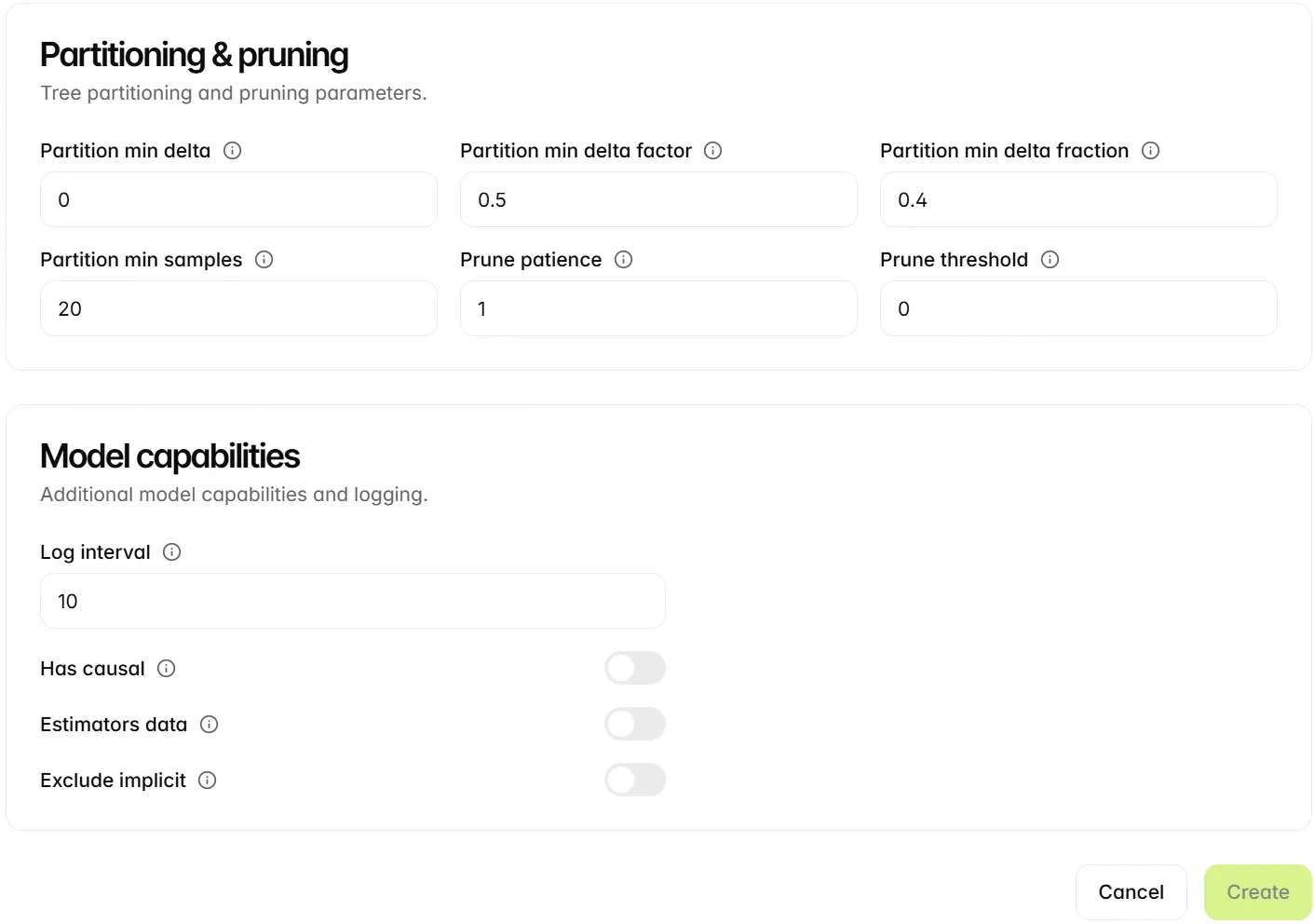
Partition settings control when a split is worthwhile. Pruning settings control removal of low-impact modules when sparse modelling is enabled.
Prefer Partition min delta fraction unless you know the absolute loss improvement to require. Review pruning together with Sparse model rather than changing either setting in isolation.
Model capabilities
Leave Has causal and Estimators data off unless your workflow supports them. Enabling a capability does not establish that a learned relationship is causal.
Exclude implicit must not be combined with Max interactions. The UI form supplies Max interactions, so leave Exclude implicit off in this workflow. Use the constraint configuration guidance for a configuration that explicitly defines allowed modules.
Reuse a configuration
Open the saved configuration before selecting it in another job. Check its name and settings, then use it with the intended dataset, workspace and training compute configuration. For a controlled comparison, create a clearly named configuration for the changed settings and retain each job’s configuration reference.
Next steps
Continue to Training jobs.